> ## Documentation Index
> Fetch the complete documentation index at: https://docs.trymassive.ai/llms.txt
> Use this file to discover all available pages before exploring further.
# How to invite Massive to your Google Business Profile as a manager
To help us troubleshoot issues, update information, or manage your profile on your behalf, you can invite the Massive Support team as a **Manager** on your Google Business Profile.
This guide walks you through the process. The whole thing takes less than a minute.
**Support email to invite:** `support@trymassive.ai`
## Before you begin
You must be signed in to Google with an account that has **Owner** access to the Business Profile you want to share. Only owners can add or remove other people from a profile.
## Step 1: Open your Business Profile
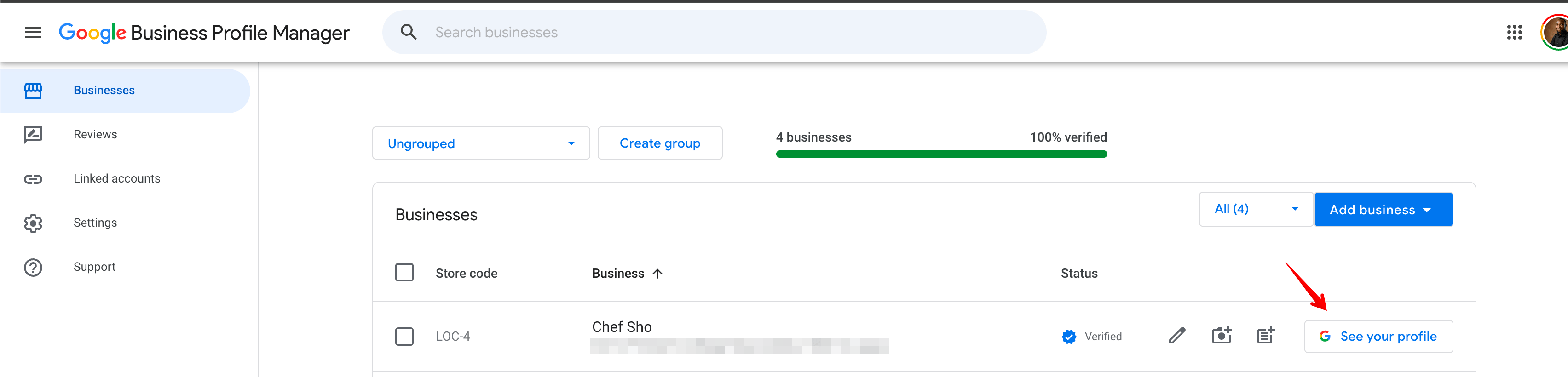
Go to the [Google Business Profile Manager](https://business.google.com/) and find the business you want to share. Click **See your profile** on the right side of the listing.
 ## Step 2: Open Business Profile settings
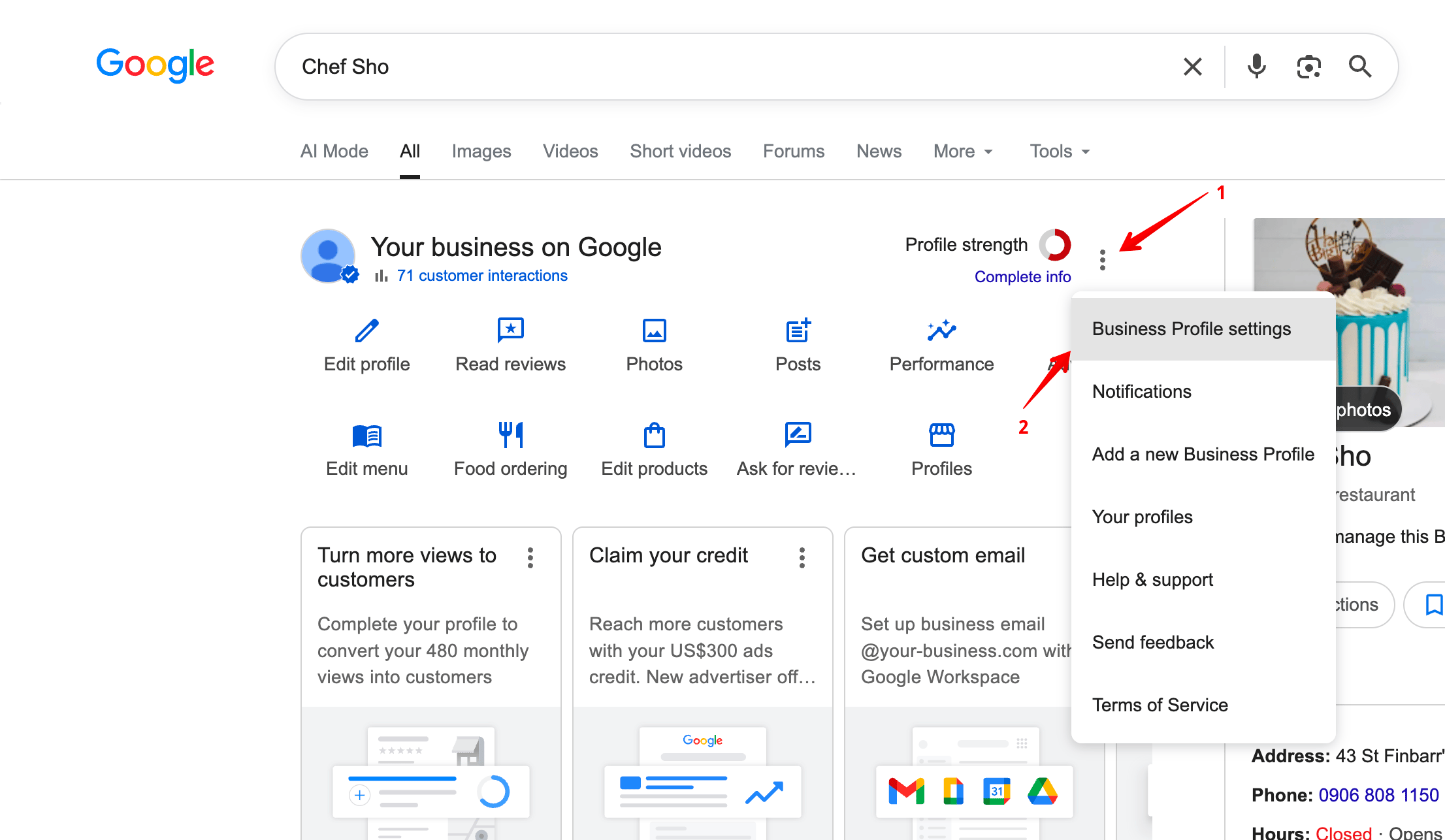
Your profile will open directly on Google Search. Click the **three-dot menu** next to "Profile strength", then select **Business Profile settings**.
## Step 2: Open Business Profile settings
Your profile will open directly on Google Search. Click the **three-dot menu** next to "Profile strength", then select **Business Profile settings**.
 ## Step 3: Go to People and access
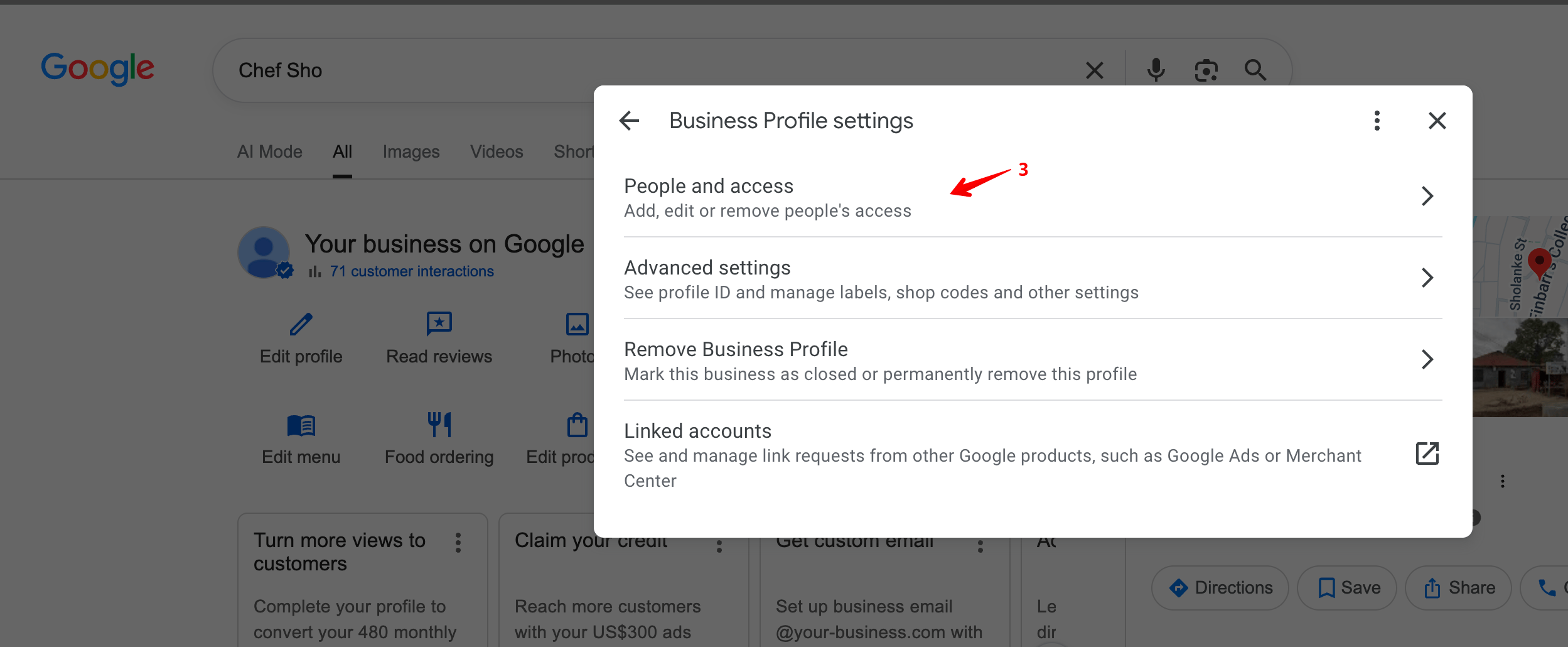
In the settings panel, click **People and access**.
## Step 3: Go to People and access
In the settings panel, click **People and access**.
 ## Step 4: Click Add
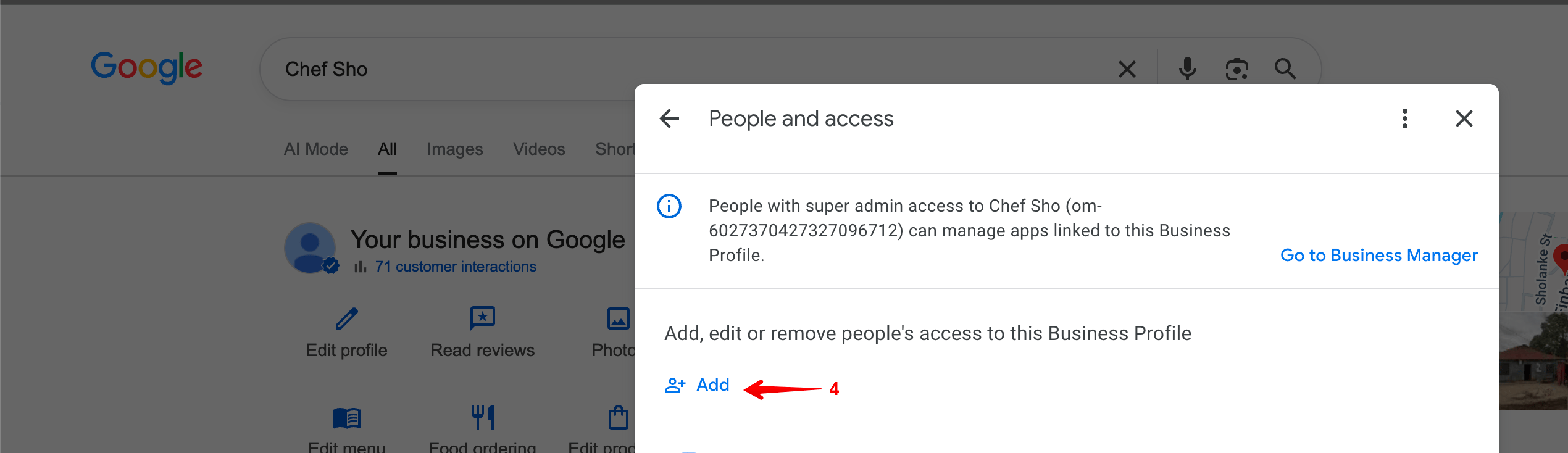
You will see a list of everyone who currently has access to the profile. Click the **Add** button to invite a new person.
## Step 4: Click Add
You will see a list of everyone who currently has access to the profile. Click the **Add** button to invite a new person.
 ## Step 5: Invite Massive Support as a Manager
In the "Add person" dialog:
## Step 5: Invite Massive Support as a Manager
In the "Add person" dialog:
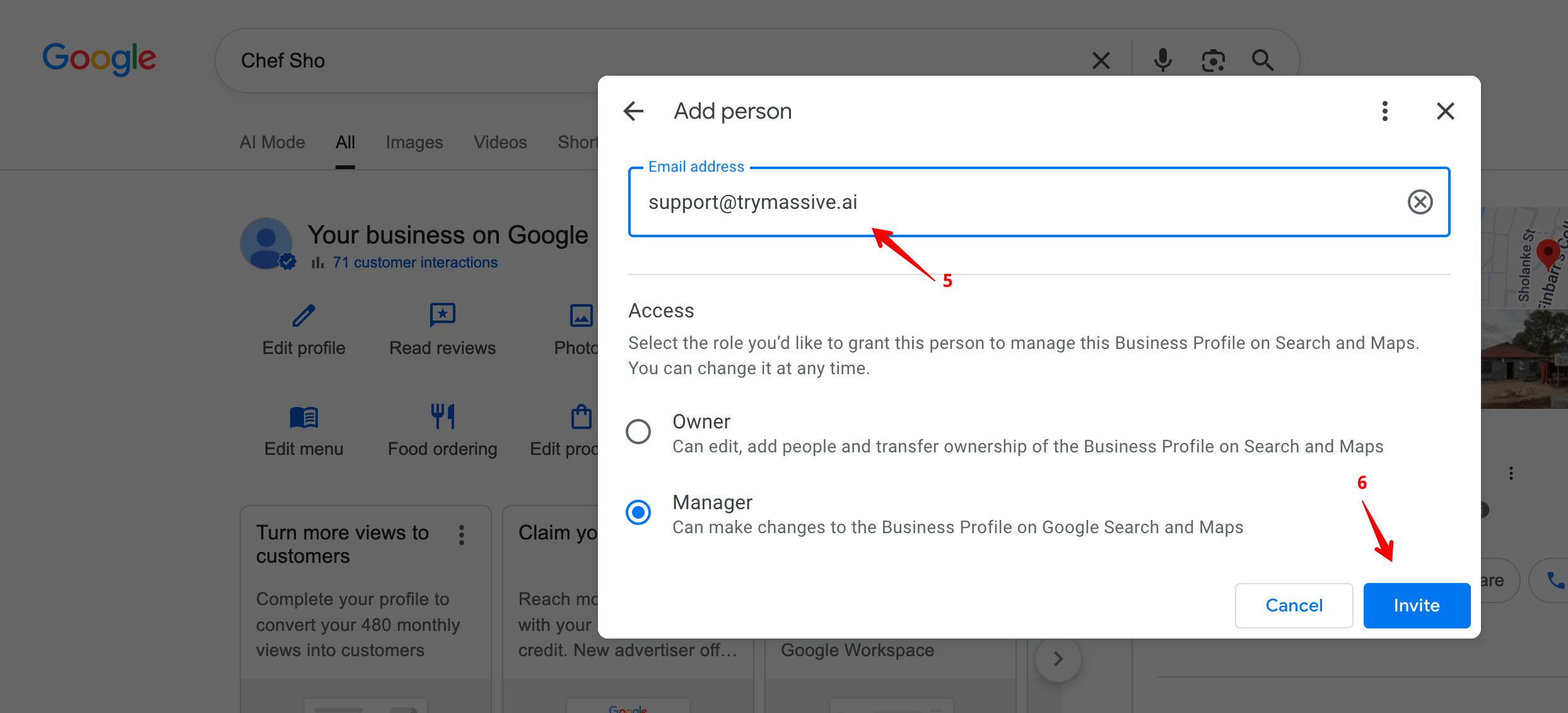 1. Enter `support@trymassive.ai` in the **Email address** field.
2. Under **Access**, select **Manager**.
3. Click **Invite**.
## What happens next
Our team will receive the invitation by email and accept it within one business day. Once we accept, you will see us listed under **People and access** with the **Manager** role.
You can remove our access at any time from the same **People and access** screen.
## Why Manager access?
The **Manager** role gives our team everything we need to support you, including the ability to see your profile strenght directly from google. It does **not** allow us to transfer ownership or remove other users, so your account remains fully under your control.
## Need help?
If you run into any issues during these steps, reply to your onboarding email or reach out to us at [support@trymassive.ai](mailto:support@trymassive.ai) and we will walk you through it.
1. Enter `support@trymassive.ai` in the **Email address** field.
2. Under **Access**, select **Manager**.
3. Click **Invite**.
## What happens next
Our team will receive the invitation by email and accept it within one business day. Once we accept, you will see us listed under **People and access** with the **Manager** role.
You can remove our access at any time from the same **People and access** screen.
## Why Manager access?
The **Manager** role gives our team everything we need to support you, including the ability to see your profile strenght directly from google. It does **not** allow us to transfer ownership or remove other users, so your account remains fully under your control.
## Need help?
If you run into any issues during these steps, reply to your onboarding email or reach out to us at [support@trymassive.ai](mailto:support@trymassive.ai) and we will walk you through it.